
I am going to show how to use the AWS Mobile CLI to configure a new React Native project with AWS Amplify + Cognito & enable user sign up and sign in. This also goes over how to enable two factor authentication.
Step 1: Create React Native project
react-native init sample
cd sample
mkdir src
npm install --save amazon-cognito-identity-js
npm install --save aws-amplify
npm install -g awsmobile-cli
Step 2: config AWS account
awsmobile configure
Use your AWS user account information

Step 3: create AWS Mobile Hub using :
awsmobile init
Go to https://console.aws.amazon.com/mobilehub/ you will see the new project is created. Next, enable User Sign Up / In:
awsmobile user-signin enable

awsmobile push
Now, when you go to https://aws.amazon.com/cognito/ you will see the new Pool has the same name with your Mobile Hub created above.
Step 4 : Code for User Sign Up, in App.js:
import Amplify, { Auth } from 'aws-amplify';
import config from './src/aws-exports'; //this file is created automatically
Amplify.configure(config);
export default class App extends Component<{}> {
    state= {
        authCode:'',
    }

    signUp() {
        Auth.signUp({
            username:'test',
            password:'test!2dAa1231',
            attributes: {
                phone_number:'+15618112906',
                email:'baodinhthe@gmail.com'
            }
        })
        .then(res => {
            console.log('successfull', res)
        })
        .catch(err => {
            console.log(err);
        })
    }
    confirmUser() {
        const { authCode } =this.state;
        Auth.confirmSignUp('test', authCode)
        .then(res => {
            console.log('successfull confirmation', res)
        })
        .catch(err => {
            console.log(err);
        })
    }
    onChangeText(authCode) {
        this.setState({ authCode })
    }
And the UI:
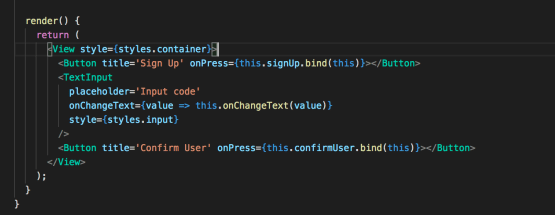
When you click Sign Up, AWS Pool will create a new user test in Users and Groups with Status = “UNCONFIRMED” , and you will receive confirmation code to active new user. Input received confirmation code into textbox and click Confirm User you will see the status change to “CONFIRMED“.
Now you can use new user to login with AWS.
 Bao Dinh